




Be first to know about the latest news and get exclusive offers.
For the latest app and user manual downloads, please visit Download Center. >
FAQ
- Potensic Care Service
- App
- Firmware
- Remote Controller and Video Transmission
- Power and Battery
- Camera
- Product
Potensic Care Service
-
Is Potensic Care applicable to the entire ATOM series?
Currently, Potensic Care is only available for ATOM 2 series and ATOM 3 series. -
How many replacements can I request under Potensic Care?
This depends on the details of the service plan you purchased:• If you purchased the 1-Year Plan, you are eligible for up to 2 replacements within the 1-year coverage period.• If you purchased the 2-Year Plan, you are eligible for up to 4 replacements within the 2-year coverage period. -
Can I transfer Potensic Care to another device?
Once Potensic Care is activated and bound to your drone, its benefits apply only to the currently bound device.If you have used a replacement service under your current account and still have remaining replacements, you can transfer Potensic Care benefits to the replacement drone.To do this, navigate to the Potensic Care purchase page in the Potensic Eve App and select “Bind Existing Care” to bind your existing Potensic Care plan to the replacement drone. -
How to submit a replacement request for covered devices under Potensic Care?
You can apply for a replacement service through the following channels:1. Navigate to Me > My Device > Care Service > Replacement Service to contact customer support and submit your request.2. If your drone is lost, navigate to Me > My Device > Device Information > Flyaway Report in the Potensic Eve App and submit a flyaway report.Once the report is confirmed, contact customer support to complete the replacement process. -
When does Potensic Care take effect?
After successfully purchasing Potensic Care, connect the Potensic Eve App, remote controller, and drone while your phone is connected to the internet. Potensic Care will automatically bind to your drone.The service is officially activated when the App displays “Valid” under Me > My Device > Care Service > Care Service Status. -
What are the conditions for purchasing Potensic Care?
1. Within 48 hours after activation.2. The drone must connect normally without showing any Error Code.3. Available in supported countries or regions.4. The account used to purchase Potensic Care must match the drone’s bound account.5. The drone must be original and not repaired or modified by third parties. -
How to purchase Potensic Care?
You can purchase the Potensic Care service directly in the Potensic Eve App within 48 hours after activating your drone. -
What is Potensic Care?
Potensic Care is an insurance service specifically designed for the ATOM series drone. During the coverage period, if your insured drone is damaged due to normal use or accidental incidents, or if it is lost, you can follow the replacement service process to receive a fully functional replacement drone (including a battery).
Potensic Care offers two service plans to meet your needs:
1-Year Plan: Coverage for 1 year with 2 replacements.
2-Year Plan: Coverage for 2 years with 4 replacements.* The replacement process involves a service fee. For more details, please contact Potensic Customer Support: support@potensic.com.
App
-
Can I open other applications while using the Potensic Eve App to upgrade, allowing Potensic Eve to run in the background?
No, doing so may result in an upgrade failure.The mobile device needs to remain unlocked and stay at the App interface during the upgrade process.If the upgrade fails, please follow the prompts in the App to retry the upgrade. -
Does the App have any system requirements for phones?
iOS 13.0 or above is required for iPhones, and Android 7.0 or above for Android phones. -
Which App should I install to use ATOM 3? Where can I download it?
You need to download Potensic Eve App.Potensic Eve App can be downloaded by scanning the QR code in the Quick Start Guide or from App Store or Google Play Store.
Firmware
-
Why does the drone perform a forced upgrade upon startup?
This may occur due to the replacement of the drone, remote controller, or battery, which can lead to a mismatch in firmware versions.Such mismatches can cause the flight control system to operate abnormally, necessitating a forced upgrade. -
Can I disconnect the network after the firmware download is complete and continue the upgrade?
Yes. -
Does the ATOM 3 drone firmware upgrade require the remote controller? Can it be upgraded directly via the mobile device?
Yes, the remote controller is required; it cannot be upgraded directly through the mobile device. -
What should I do if the drone firmware update failed?
If the whole update process gets stuck, or the App prompts the upgrade failed, you can refer to the following steps to troubleshooting.1. Check whether the battery level of the devices are sufficientBefore upgrading, make sure that the battery level of the drone is ≥30% and that of the remote controller is ≥2 bars. If the battery level is insufficient, please charge the device before upgrading.2. Check whether the network connection of your smartphone is availableBefore upgrading, make sure the network connection of your mobile device is available, otherwise the firmware download will fail. If the firmware download fails, use another device with the same or different operating system and try to upgrade again.3. Check whether there is any interference nearby and whether the distance between the drone and the remote controller is too farDuring the update process, the firmware needs to be transmitted to different devices. To avoid transmission problems, make sure that the distance between the remote controller and the drone is kept within 1 meter and away from areas with signal interference (such as computers, routers, etc.).4. Check whether the devices are stationary when upgradingDuring the upgrade process, do not operate the drone and the remote controller (e.g., turn off the devices, unplug the adapter cable, etc.), unless you are prompted, and keep the devices stationary.5. Check whether the gimbal protector has been removed before upgradingNot removing the gimbal protector will cause the upgrade to fail. Before upgrading, check whether the gimbal protector has been removed and make sure there are no obstacles around the gimbal. -
How to upgrade the firmware of ATOM 3?
After the drone is connected to the remote controller, the Potensic ATOM 3 will prompt a firmware update notification (if a new version is released).You can follow the instructions to upgrade the firmware of the drone, remote controller, battery, and other devices.
Remote Controller and Video Transmission
-
How do I update the PTD 2 Screen Remote Controller?
Firmware update: Make sure the drone is connected to the remote controller and that the remote controller is online.Then, follow the firmware update prompt at the top left of the App’s home screen to complete the update.App update: Ensure the remote controller is online, and follow the App update prompt at the top left of the App’s home screen to complete the update. -
Does the PTD 2 Screen Remote Controller support installing third-party Apps?
No. -
Does the PTD 2 Screen Remote Controller have a speaker and microphone?
It has a built-in speaker but no built-in microphone. -
Does the PTD 2 support forced shutdown?
Yes. Press and hold the power button for about 10s to force a shutdown. -
Why is the PTD 2 Remote Controller low on battery upon first power-on?
In accordance with relevant transportation regulations, devices equipped with lithium-ion cells or battery packs must not exceed 30% of its rated capacity.Therefore, the battery level displayed upon first power-on may be below 30%. It is recommended to charge the device before use. -
How to improve the charging efficiency of the PTD 2 remote controller?
To achieve optimal charging speed, please use a USB charger that supports the PD 2.0 fast charging protocol or higher,along with an original USB-C to USB-C cable or one that supports the PD fast charging protocol with a current rating of 3A or above.Using a USB-A to USB-C cable may not activate the fast charging function. -
What is the battery life of the PTD 2 Screen Remote Controller?
The maximum battery life is approximately 3 hours (tested at an ambient temperature of around 25°C, with the PTD 2 screen brightness set to 80%, connected to an ATOM 3 series drone during normal flightwith 1080p/60fps recording enabled, and used continuously until the battery reached 0%. For reference only). -
Does the PTD 2 Screen Remote Controller support fast charging?
Yes. The PTD 2 Screen Remote Controller supports the PD fast charging protocol, and its USB-C port can achieve a maximum fast charging power of 27 W (9 V/3 A).In this mode, it takes approximately 1 hour and 25 minutes to charge the device up to 90%. -
How can I quickly share aerial footage after shooting with the PTD 2 Remote Controller?
Method 1: Install the Potensic Eve App on your mobile device, connect to the drone via Wi-Fi, and use SmartTransfer to save your files to the device.Method 2: Use a card reader to quickly export files from the drone's SD card. -
What are the upgrades compared to the PTD 1?
Video Transmission has been upgraded to support adaptive frequency switching across 2.4G, 5.2G, and 5.8G bands (tri-band is available only in the US/Europe).When paired with ATOM 3, it delivers PixSync 5.0 Video Transmission performance, offering extended transmission range and enhanced anti-interference capabilities.The screen brightness has been increased from 700 nits to 900 nits.The shutter button now features a two-stage design – half-press to lock exposure and full-press to capture photos. This upgrade significantly enhances control and precision during shooting. -
Which models are compatible with the PTD 2 Screen Remote Controller ?
It is compatible with the ATOM 2 Series and ATOM 3 Series. -
SmartTransfer Connection Failure Troubleshooting
1. Ensure that your mobile device's Wi-Fi and Bluetooth are enabled.2. Keep your mobile device within 1 m of the drone, with no obstacles in between to maintain a strong Wi-Fi connection.3. Check if data acceleration or network assistant settings are enabled on your mobile device.These features may adjust network connections automatically, potentially affecting direct Wi-Fi transmission between the drone and your device.• For Android devices: Go to "Settings" and search for keywords like "Data Acceleration," "Mobile Data Boost," "Smart Network Switching," or "Network Acceleration Engine." The exact names may vary by brand. Locate and disable these features.• For iOS devices: Go to "Settings" > "Cellular" and scroll down to disable "Wi-Fi Assist."4. If the current environment has strong Wi-Fi interference, try moving to a location with less interference.After completing these steps, restart the app and the drone, then attempt to reconnect. If the issue persists, please contact online customer support. -
Can the adapter cable of the remote controller be used to charge the remote controller or other devices?
No, the adapter cable of the remote controller is only used for communication between the mobile device and the remote controller, and cannot be used for other purposes.Connecting other unintended devices may cause irreversible damage. Besides, do not plug the USB-C adapter cable into the USB-C charging port of the remote controller, as it may cause a short circuit. -
Why do I experience issues such as latency, lag, snowing, or mosaic effect during video transmission?
1. If the firmware version does not match, it may lead to video transmission issues (if there is a new version of firmware, please upgrade and try again).2. The video transmission is susceptible to environmental signal interference, which affects the quality of the video transmission,such as radio signals in urban areas (please stay away from this interference environment and try again).3. Insufficient performance of the display device or device failure may affect the video transmission, such as: insufficient running memory of the mobile device, hot screen, or device incompatibility.4. Remote controller antenna is not aligned with the flight direction of the drone, resulting in poor video transmission signal. -
Can the PT 2 remote controller fly without connecting the mobile device?
For safety reasons, it is not recommended that you fly the drone without your mobile device connected.However, if you have to disconnect your mobile device during flight, you can still operate the drone via the remote controller.Please refrain from this dangerous maneuver if it is not necessary, especially if the drone is out of your visual line of sight. -
Does the ATOM 3 drone firmware upgrade require the remote controller? Can it be upgraded directly via the mobile device?
Yes, the remote controller is required; it cannot be upgraded directly through the mobile device. -
What is the video transmission resolution of ATOM 3?
It supports up to 1080p at 60 fps. -
What is the transmission range of ATOM 3?
ATOM 3 has a maximum transmission distance of up to 16 km.This data is measured under FCC standards in an open outdoor environment with no obstructions or interference, at a flight altitude of 120 m,and with the remote controller’s antenna directed towards the drone for a one-way flight without considering the returning.Please pay attention to RTH prompts on the App during actual flights. -
How to customize button functions on the ATOM 3 remote controller?
You can customize the button functions in the Potensic Eve App by navigating to Settings > Control > Remote Controller Settings > Button Customization.1. Custom Button C1• Single Press: Switch the default gimbal tilt angle (0°/-90°).• Double Press: Switch the default camera mode (Manual Mode/Auto Mode).• C1 + Left Dial: Default shutter speed adjustment.• C1 + Right Dial: Default ISO adjustment.2. Custom Button C2• Single Press: Switch the default speed settings (Video /Normal /Sport Mode).• Double Press: Default Cruise Control (Enable/Disable/Update).• C2 + Left Dial: Default white balance adjustment.• C2 + Right Dial: Default exposure compensation adjustment. -
How to adjust the antenna on the ATOM 3 remote controller?
During flight, always keep the remote controller’s antenna facing the direction of the drone to ensure optimal transmission quality and longer flight distance.When the drone is flying directly above the remote controller at a high altitude, poor antenna angle will significantly reduce communication quality.Please lower the altitude or fly horizontally for a distance to ensure that the remote controller’s antenna is aligned with the drone as much as possible. -
What is the maximum size of devices that the ATOM 3 PT 2 remote controller can support?
Length: 170 mm, Width: 100 mm, Thickness: 12.5 mm.For mobile devices with protruding rear cameras, the maximum supported thickness is 18 mm. -
Does the ATOM 3 remote controller support fast charging?
Yes, PT 2 remote controller supports 18W charging power. Using a charger with PTD 2 protocol can achieve maximum charging efficiency, fully charging the battery in about 2 hours.PTD1 remote controller supports a maximum fast charging power of 27W (9V/3A). It can charge up to 90% in as little as 1 hour and 25 minutes. -
Does the ATOM 3 remote controller support HDMI output?
No, it does not support HDMI output.
Power and Battery
-
Can the adapter cable of the remote controller be used to charge the remote controller or other devices?
No, the adapter cable of the remote controller is only used for communication between the mobile device and the remote controller, and cannot be used for other purposes.Connecting other unintended devices may cause irreversible damage. Besides, do not plug the USB-C adapter cable into the USB-C charging port of the remote controller, as it may cause a short circuit. -
When I connect my iPhone to the remote controller, why do I need to tap "Trust This Computer" and enter the passcode every time?
To solve this problem, please turn off "Personal Hotspot" in Settings > Cellular > Personal Hotspot or Settings > Personal Hotspot before connecting your iPhone to the remote controller.When your iPhone is connected to the remote controller for the first time, you need to tap "Trust" and enter the passcode, then you don't need to repeat the procedure in the future. -
Why doesn't my Android phone respond or show the connection after plugging in the USB cable?
1. Ensure that the remote controller is powered on correctly (it may have entered other modes, such as calibration or upgrade).2. Ensure the USB cable is intact and inserted in the correct direction.3. When the USB cable is plugged into the phone, if a pop-up window of USB connection options appears, please select 'Data Transfer'. -
Why can't I use my Micro-USB cable to connect the remote controller with my mobile device as the cable is inserted in the inverted direction and cannot be used normally?
This product supports three types of mobile device interfaces: USB-C, Lightning, and Micro-USB.When using a device with a Micro-USB interface, you need to purchase a separate adapter cable for the remote controller that has a standard Micro-USB connector.The Micro-USB data cable only works with devices where the narrower side of the connector faces the screen.If your device has a Micro-USB interface and the wider side is facing the screen, the remote controller will not function properly. -
Why is the drone battery or remote controller charging slowly?
1. Ensure you’re using a charger and cable that meet the recommended charging power specifications.2. Charge the drone battery and remote controller in an optimal temperature range of 5°C to 40°C.3. If the battery is hot after use, allow it to cool down before charging. -
How to check the battery level?
1. Insert the battery into the drone, then press once the power button. The battery level will display on the top of the drone.2. Power on the drone and remote controller, connect to the App, and the battery level will appear in the upper-right corner of the flight interface. -
How to properly maintain the ATOM 3 battery?
1. To protect the battery cells, if a fully charged battery is unused for more than 5 days, it will enter self-discharge mode, reducing the charge to around 60%.2. To maintain battery health, it’s recommended to fully charge and discharge the battery about every 3 months. This helps extend the battery’s lifespan.3. Store the battery separately from the drone in a well-ventilated, dry environment.4. Charging will be prevented if the battery temperature is too high or too low, which protects the battery. -
Why doesn’t the charging indicator on the smart battery turn on during charging?
1. The recently used battery may be overheated. Please wait for it to cool down before trying again.2. The battery update may have failed. Insert it into the drone, power it on, and connect the remote controller and open the App to check if the battery update was successful.3. The battery temperature might be too low. Insert it into the drone to warm it up by powering it on, then remove it and try charging again.4. The charger or cable may be damaged. Please ensure both are functioning properly. -
How to charge ATOM 3?
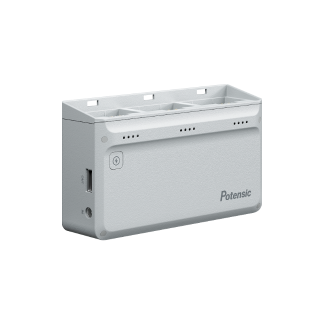
You can charge the battery and PT 2 remote controller directly through the USB-C charging port or use the charging hub. Note: when charging the PT 2 controller, please fold the antenna first.*The product does not include a USB charger; users can charge it with any USB charger that meets FCC/CE standards. -
What is the maximum takeoff altitude of ATOM 3?
The maximum takeoff altitude for ATOM 3 is 4000 m. When taking off above 3000 m, the performance of power system is weakened. Please exercise caution for safe flight. -
What is the maximum flight altitude of ATOM 3?
The maximum flight altitude is subject to different laws and regulations based on the country or region, with a relative maximum flight altitude of 120 m.Please pay attention to local laws and regulations before flying. -
What is the maximum flight time of ATOM 3?
40 minutes, with a long-lasting battery, the maximum flight time can be extended to 50 minutes.*The maximum flight time is measured at an ambient temperature of approximately 25℃ in a windless environment,flying forward at a constant speed of 6.3 m/s, switched to 1080p/24 fps video recording mode (without video recording operation during flight) from 100% battery charge until 0%.The specific results may vary due to external environment, operating methods, and firmware version. Please refer to the actual experience for accurate results. -
Does ATOM 3 support automatic track?
Yes, the ATOM 3 features the AI Track feature, which includes three modes: Parallel, Spotlight, and Follow.The drone will automatically fly based on the user’s selected tracking mode and the designated subject.Users can choose whether to automatically start recording when AI Track is activated. (During AI Track, the flight altitude must be greater than 4 m, and the maximum following speed is 12 m/s;When Low Altitude Follow is enabled and used with propeller guards, the flight altitude can be as low as 0.8 m.)
Camera
-
How to add a photo frame?
1. Enter the Drone Album, select the photo you want to edit, and download it to your local album. Alternatively, choose a photo directly from your Local Album.2. Once the download is complete, tap the frame icon in the bottom-right corner.3. Select a frame style from the frame interface, then tap the "Save" button in the upper-right corner. Once saved, you can view the photo in Local Album > Edited. -
What is the descending return?
During the regular return course, if the flight altitude is greater than 150 m (492.1 ft) and the flight distance greater than 300 m (984.3 ft) from the HOME point,the App will prompt a message for you to confirm whether to initiate the descending return.Once confirmed, the drone will start the descending return (the drone will descend its altitude while approching the HOME point). When its altitude descends to 120 m (393.7 ft), the drone will switch to the regular return.Tips:1. When encountering strong winds, the descending return can save power consumption.2. Please pay attention to the return path and make sure to exit the descending return manually in case of obstacles (tap the icon on the left of the App interface or push the throttle control stick up for 2 seconds) -
What should I do if there is noticeable image jitter or jello effect during video transmission or recording?
1. Check whether the drone body is damaged first, and ensure that all the arms are not loose and broken, the motors are firmly installed and rotate smoothly, and all the propellers and screws are not deformed or broken, etc. If you find any abnormality, replace it immeidately. Otherwise there may be vibration in flight, which will affect the flight safety and shooting quality.
2. Check whether there are foreign objects or sand stuck in the gimbal, whether the gimbal itself is deformed or damaged, whether the shock absorbing ball is installed correctly. Failure of the shock absorbing system will seriously affect the shooting quality, please restore the shock absorbing ball by hand or with the help of a tool.
3. If none of the above methods solves the image jitter issue, please contact customer support. Official email: support@potensic.com
-
How to download photos and videos from the drone to my mobile device?
After capturing media with the drone, you can preview all photos and videos in the Album. To download high-quality files from the SD card, it’s recommended to use the SmartTransfer feature.SmartTransfer connects your mobile device to the drone via Wi-Fi (no need to connect the remote controller).Simply use the Potensic Eve App to download photos and videos from the drone at speeds up to 30 MB/s, allowing for a faster media transfer directly to your phone. -
What do the color changes of the attitude indicator in the flight interface indicate?
Green indicates that the drone is flying at a relatively small tilt angle. High precision control over the gimbal and optimal video quality can be achieved.Yellow indicates that the drone is flying at a relatively large tilt angle. The control precision of the gimbal may be affected, and the video quality may be reduced.Red indicates that the drone is flying at a very large tilt angle.If the attitude indicator frequently turns red during flight, the drone may be encountering strong winds and the video quality can be compromised.Please fly the drone back and land it as soon as possible. -
Does ATOM 3 support capturing panoramic photos?
Yes, it includes 180°, Vertical, Wide Angle and Sphere. -
Can I replace the gimbal on ATOM 3 by myself?
No. -
Does ATOM 3 support AI QuickShots?
Yes, it includes Pull-Away, Rocket, Circle, Spiral, Boomerang, Dolly Zoom, and Drift. -
Does ATOM 3 support capturing photos in RAW format?
Yes, it supports RAW format. -
Does ATOM 3 support vertical shooting mode?
Yes. -
Why does a high camera temperature warning appear after the drone has been powered on for a while?
The drone camera is designed for use during flight, where airflow from the propellers helps with cooling.It is not recommended to use the camera while the drone is stationary, as high temperatures may trigger a protective shutdown. -
How is stabilization achieved in the ATOM 3 camera?
The camera utilizes a three-axis mechanical gimbal for stabilization (pitch, roll, and yaw). -
What are the main specifications of the ATOM 3 camera?
ATOM 3 uses a 1/1.3-inch CMOS sensor with an effective pixel count of 50 MP and a 84° field of view (FOV). -
Does ATOM 3 support manually adjusting camera parameters for photo and video recording?
Yes, it does. You can manually set the camera’s shutter speed, ISO, and white balance parameters through the Potensic Eve App. -
Why can’t the drone take photos or record videos?
1. Ensure that an SD card is inserted in the drone.2. Check if the SD card is formatted in exFAT; if not, please reformat it before use.3. Verify the SD card has available storage. If it’s full, please format or delete some files before taking photos or recording videos.
Product
-
How to activate Emergency Propeller Stop Mid-Flight feature?
In an emergency where the drone must stop flying immediately, you can use the Emergency Propeller Stop Mid-Flight feature.This feature is disabled by default and can be enabled by navigating to Potensic Eve App > Safety > Advanced Safety Settings > Emergency Propeller Stop Mid-Flight.Once enabled, in an emergency situation, press and hold both the C2 button and the RTH button simultaneously for 2 seconds to instantly stop the motors.Please note, Emergency Propeller Stop Mid-Flight will cause the drone to fall freely to the ground, potentially resulting in severe damage.Use this feature cautiously, ensuring there are no people and the area below is clear. -
How should the drone be stored?
1. Store the drone in a well-ventilated, dry environment.2. Remove the battery before storage and store the battery separately from the drone.3. If you have the original backpack, it’s recommended to use it for storage. -
Why does the drone not respond after unlocking the motors and pushing the throttle?
If the drone unlocks properly but does not take off when you push the throttle, it could be due to the remote controller’s control stick mode settings.Check if the current control stick mode matches your preference by navigating to Potensic Eve App > Settings > Control > Remote Controller Settings > Control Stick Mode. -
What should I do if the drone experiences flight instability or shakes while hovering?
Please land the drone immediately and check the following:1. Check for loose propeller screws. If any are loose, tighten them with a screwdriver.2. Inspect the propellers for damage. If damaged, replace them with new ones.3. Rotate the motors by hand to see if they move smoothly. If there is any jamming, stop flying and contact customer support.4. Inspect the arms, joints, and other structural parts for any looseness or cracks. If there are any abnormalities, contact customer support promptly. -
What should I do if the GNSS signals are weak or the drone loses remote controller signal?
1. It may take some time for the drone to search for GNSS signals after powering on. Typically, signal acquisition and HOME point recording are completed within 1–2 minutes. Please wait patiently.2. It is recommended to take off in open outdoor spaces. Indoor environments can obstruct GNSS signals, causing the drone to drift, which may pose safety risks.3. During flight, be mindful of the surroundings and try to stay away from buildings, mountains, power towers, and trees to avoid obstructions and interference with GNSS signal reception.4. Ensure that the plane of the remote control antenna is aligned with the drone’s direction. Avoid pointing the antenna tip directly at the drone, as this can weaken the signal. -
What should I do if the drone loses remote controller signal?
If the drone loses signal, it will enter a disconnection state and hover for 5 seconds while waiting to reconnect.If reconnection still fails after 5 seconds, the drone will automatically return to the takeoff point.During the return flight, point the remote controller’s antenna in the direction of the drone and wait for signal reconnection.(It is recommended to avoid flying in areas with obstacles, such as dense trees and tall buildings, to ensure the drone can return safely.) -
Why can't I find the Wi-Fi of the drone?
This product uses PixSync transmission technology and is not controlled by Wi-Fi signal.The remote controller and the drone are automatically paired and connected, and the remote controller and mobile device communicate via a data cable. -
Why can’t the drone be unlocked?
1. Confirm whether you need to calibrate the compass, or check the status of the drone for any other sensor failure prompts.2. Confirm whether the drone battery level is low (the drone will not be unlocked if the battery level below 5%).3. Confirm if there is a new firmware that has not been upgraded, please upgrade it before trying to unlock. -
What do the color changes of the attitude indicator in the flight interface indicate?
Green indicates that the drone is flying at a relatively small tilt angle. High precision control over the gimbal and optimal video quality can be achieved.Yellow indicates that the drone is flying at a relatively large tilt angle. The control precision of the gimbal may be affected, and the video quality may be reduced.Red indicates that the drone is flying at a very large tilt angle.If the attitude indicator frequently turns red during flight, the drone may be encountering strong winds and the video quality can be compromised.Please fly the drone back and land it as soon as possible. -
Does ATOM 3 support digital zoom?
Yes. -
Does ATOM 3 support use with VR goggles?
No. -
Why can’t the drone power on?
1. The power-on button might not have been pressed correctly.2. For first-time use, the battery needs to be charged to activate.3. If the drone is connected to the charger, it will not power on for safety reasons (it will automatically shut down to protect the battery).4. The battery cells or protection board may be damaged.5. Check if the power button is functioning correctly. -
What improvements does the ATOM 3 camera module have compared to ATOM2 series?
The main improvements are as follows:1. The sensor size has been upgraded to 1/1.3 inches, offering a larger light-sensitive area for better low-light performance.2. A new image processing platform has been adopted to enhance overall image quality.2. Supports 4K 60fps HDR video recording.3. Features a new-generation AI Night algorithm to improve low-light performance.4. Adds a new 4K 2x high-quality Med-Tele Mode. -
Is it necessary to remove the propellers when storing or transporting ATOM 3?
No, it’s not necessary. When storing the drone, it’s recommended to use a propeller strap. During transportation, avoid compressing the propellers, as deformation may impact flight performance. -
How often should the ATOM 3 propellers be replaced? How to replace them?
1. Before each flight, you should inspect the propellers for cracks, wear, deformation, or corrosion, and check if the propeller screws are loose.If any of these issues are found, both the propellers and screws need to be replaced according to the instructions in the user manual.2. Use the screwdriver provided in the ATOM 3 packaging to replace the propellers. When replacing, follow the instructions carefully, and replace both propellers and screws on the same motor simultaneously.3. The marked propellers must be installed on the marked arms, while unmarked propellers should be installed on the unmarked arms. Ensure the propeller screws are tightened properly. -
Can the propellers of the ATOM series be used interchangeably?
No, the propellers of ATOM 3 are newly designed and are only compatible with the ATOM 3 series drone. They are not suitable for other models. -
Is ATOM 3 waterproof?
No, it is not waterproof. Avoid contact with water during use, as this may cause damage to the device.If the drone encounters rain during flight, please return and land immediately. Wait until the drone is fully dry both inside and out before using it again. -
What is the maximum wind resistance level of ATOM 3?
ATOM 3 has a maximum wind resistance level of 5 (10.7 m/s).When flying in wind conditions of level 5 or higher, flight performance may be significantly affected, so it is recommended to lower the altitude and return as soon as possible. -
Does ATOM 3 support the automatic Return-to-Home (RTH) feature?
Yes, it does. When using this feature, please carefully observe the surrounding environment and set the return altitude properly to avoid obstacles during the return.Note that the RTH feature is not supported in Vision Positioning mode. -
Does ATOM 3 have obstacle avoidance feature?
ATOM 3 does not have obstacle avoidance feature. For safety reasons, it is recommended that beginners practice their first flights in open outdoor areas using Beginner Mode. -
Why does the App prompt to format the SD card when inserted into the drone?
1. There may be abnormal data on the SD card, which can interfere with photo and video functions. Formatting is required to restore normal use.2. You can also try using a compatible SD card for the drone. We recommend a micro SD card with a U3 or V30 rating or higher. -
Does ATOM 3 have built-in storage? Can I install a microSD card in it? What are the recommended microSD card models?
ATOM 3 has no built-in storage, and it has a microSD card slot. Please use a microSD card with a U3 or V30 rating or higher.Recommended microSD card models: Potensic JF-TF01, Lexar 633x series. -
How do I check flight logs?
ATOM 3 supports Flight Record Playback feature. You can replay your flight course via Potensic Eve App > Home Screen > Me > Flight Logs. -
What document or videos can I refer to for getting started with ATOM 3?
ATOM 3 comes with comprehensive tutorial videos and a user manual. Users can scan the QR code in the Quick Start Guide to access the Academy. -
How to power on a brand new ATOM 3?
In order to ensure the transportation safety of the drone after leaving the factory, we will set the battery into hibernation mode.The battery must be activated before use, otherwise the drone will not be powered on.Before powering on for the first time, you need to connect the battery to a USB charger or use the charging hub to complete a charge to activate the battery(this product does not include a USB charger and can be charged with a charger that complies with FCC/CE standards).After activating the battery, insert the battery into the drone, press and hold the power button until all indicators are on and release to power on the drone. -
How much does ATOM 3 weigh?
The standard weight of ATOM 3 is 249 g (including battery, propellers and microSD card).The actual weight may vary due to material and batch differences and other factors. For details please see the actual product.This product doesn't need registration in some contries or regions, please refer to local laws and regulations for more info.
language
Back to top
-
Company
-
Products
-
Support
-
Partners
-
Where to buy
-
English
Follow us
Subscribe
Subscription successful, thank you!
You can learn more about how we handle your user data through our Privacy Policy
Copyright © 2026 Potensic All Rights Reserved
English
中文简体

Successfully